Modeling a Die with Subdivision
Dice Model on Sketchfab
In this exercise, we'll be making a Die, similar to this one on Sketchfab.
Sketchfab is a great resource for sourcing free 3D models, as well as for examining the topology created by other artists.
Press play to start the model and use Click+Drag to rotate the model.
Part 1:
First, we'll add edge loops all around our model so it smooths to a cube shape.
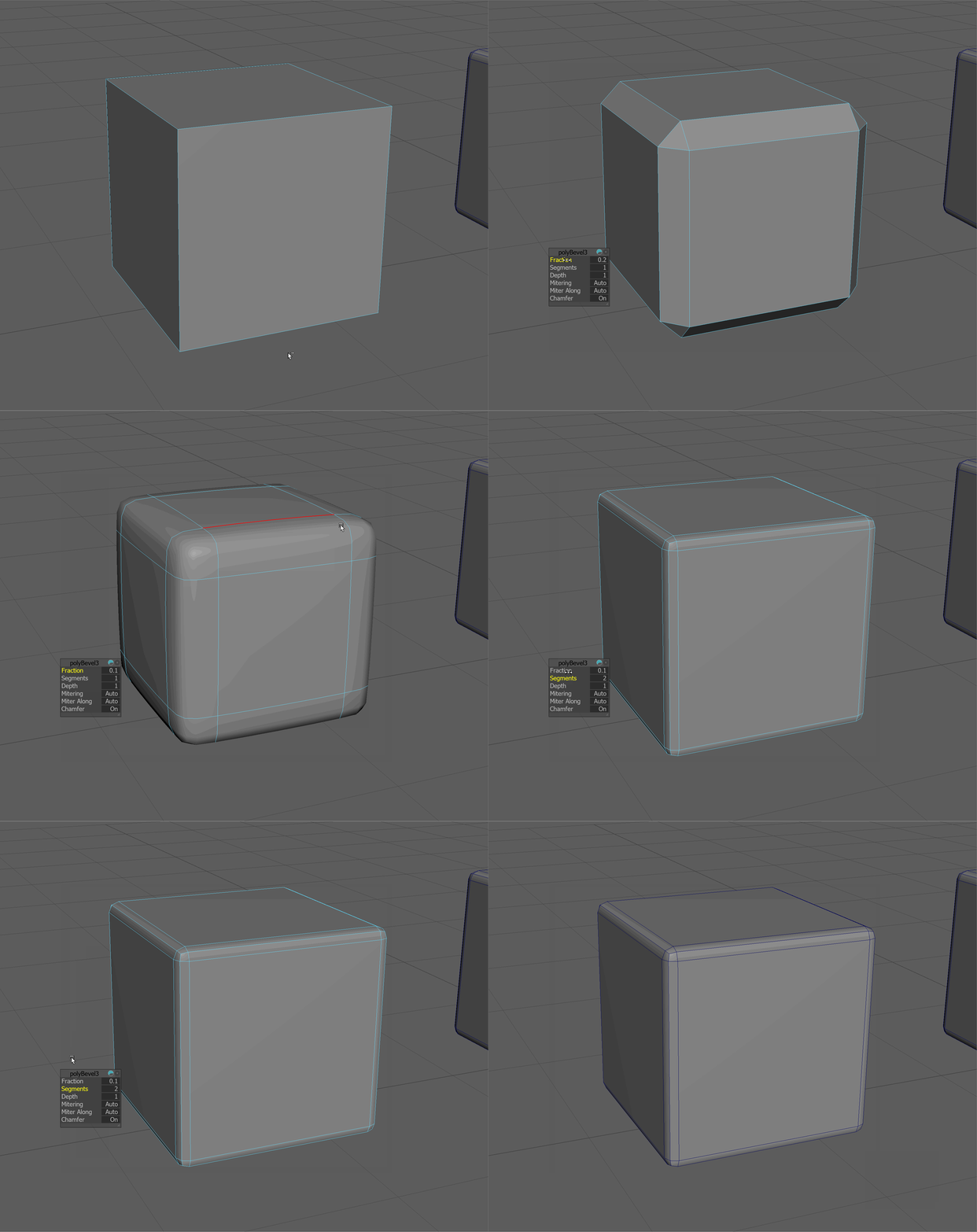
An easy way to add edges around all parts of our existing edge loops is to use the Bevel tool.
The bevel tool will bevel our model, or, in other words, soften the edges of our model.
-
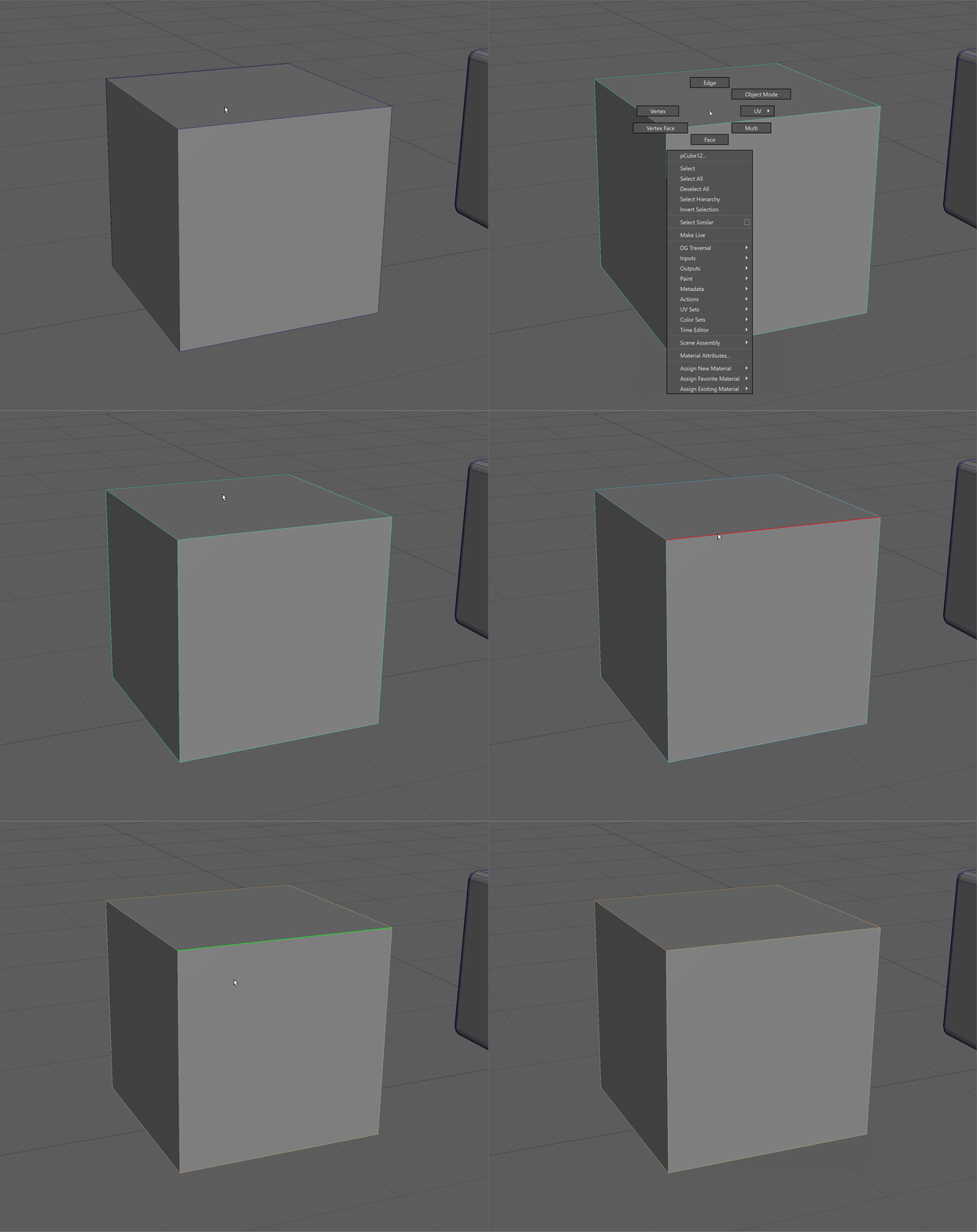
Begin by selecting all the edges of our die.
-
Use Shift+RMB to navigate to Bevel. Set fraction to .01 and our segments to 2.
-
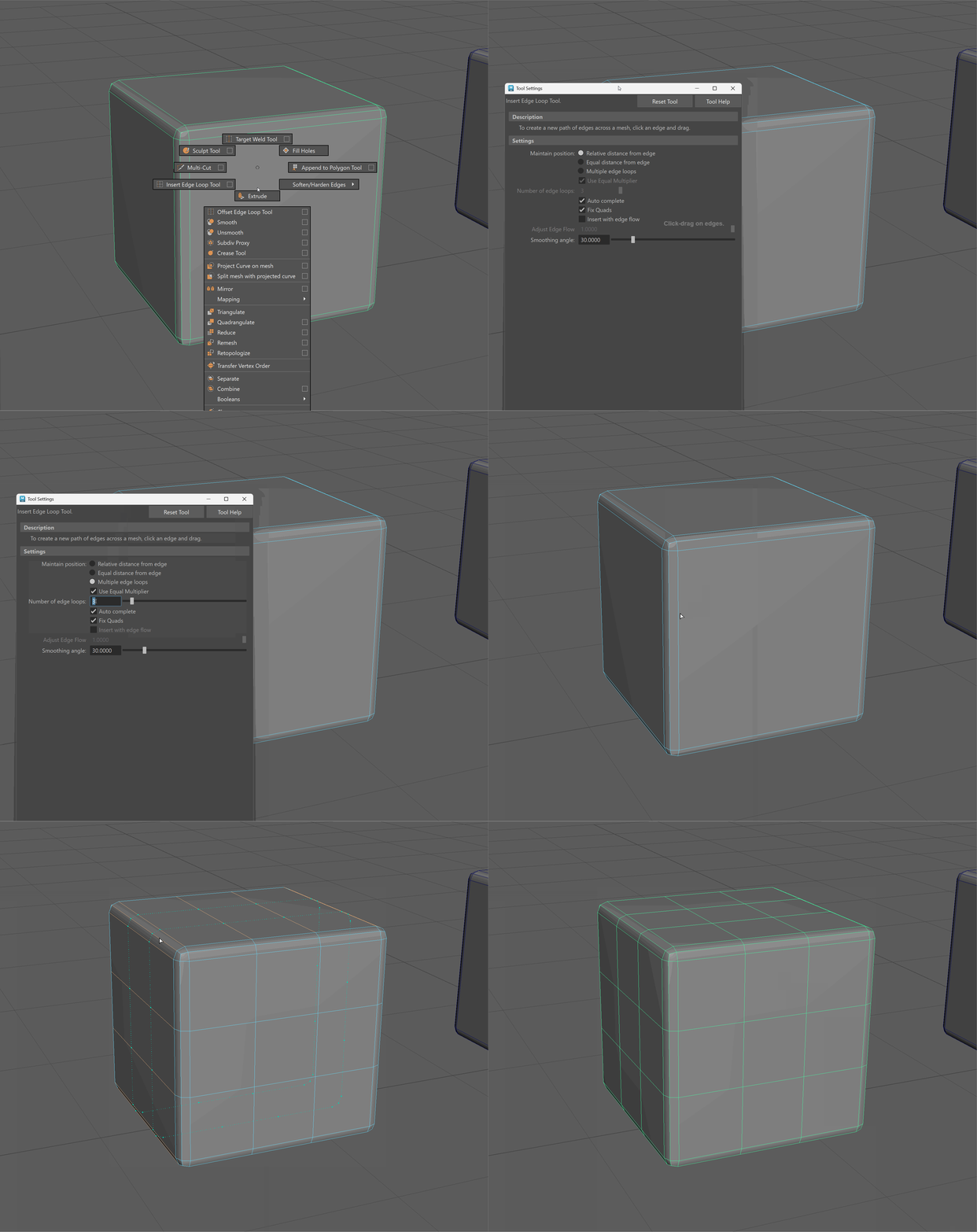
Let's add in edge loops for the number indicators for our die. Use the insert edge loop tool to add two additional edge loops on all sides of our die. Make sure to click on the setting box to change the number of edge loops we are inserting.
-
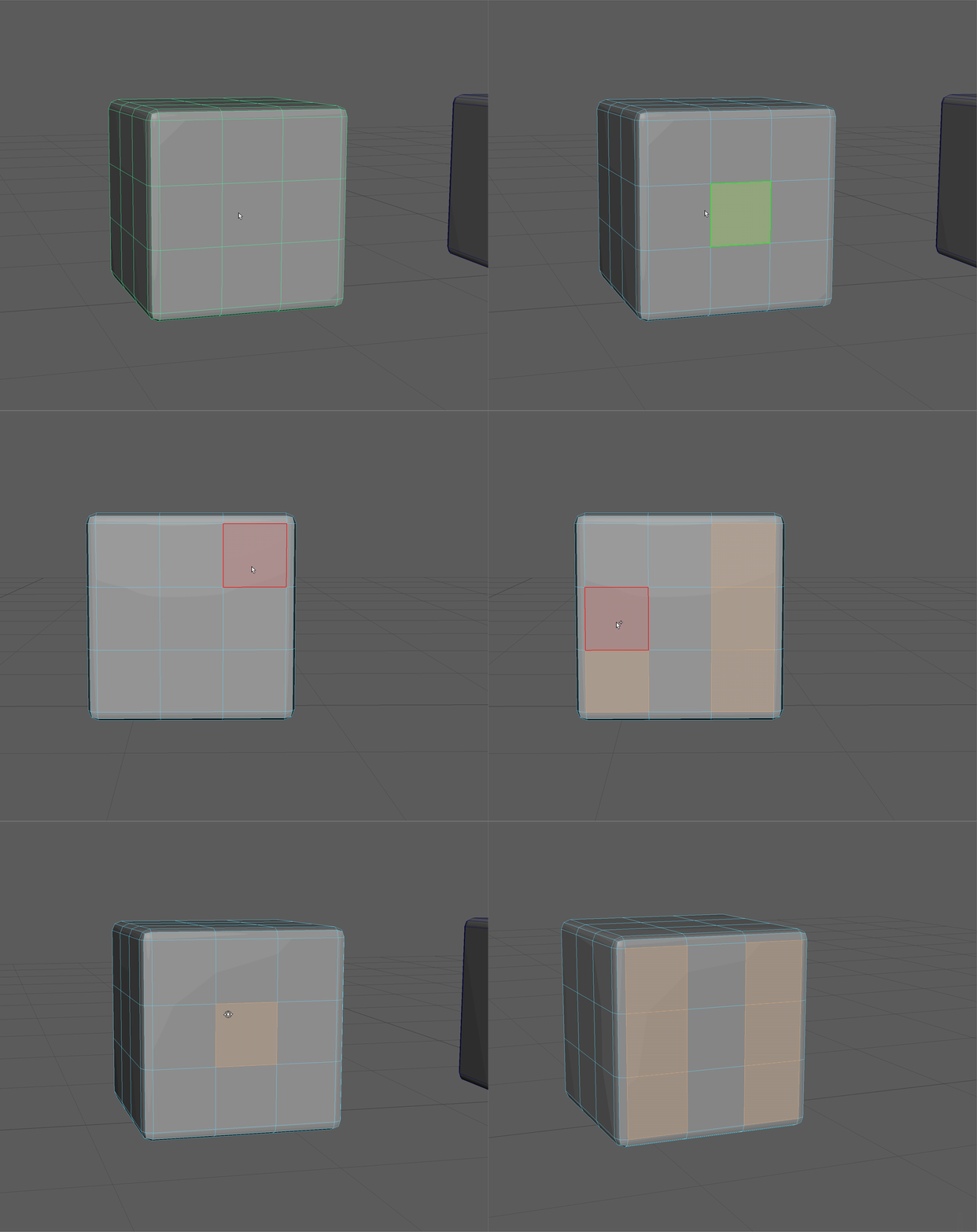
Next, let's start by making the 1-Side and 6-Side of our die by selecting the appropriate faces. The 1-Side and 6-Side are opposite each other.
-
We want the indentation for our die to have a hard edge. Let's add one edge loop inside our selected faces by using the offset tool in our extrude settings.Make sure Keep Faces Together is set to off.
UI TIP:Hold Ctrl+Shift while dragging on a parameter in a dialog box to make it change values slower.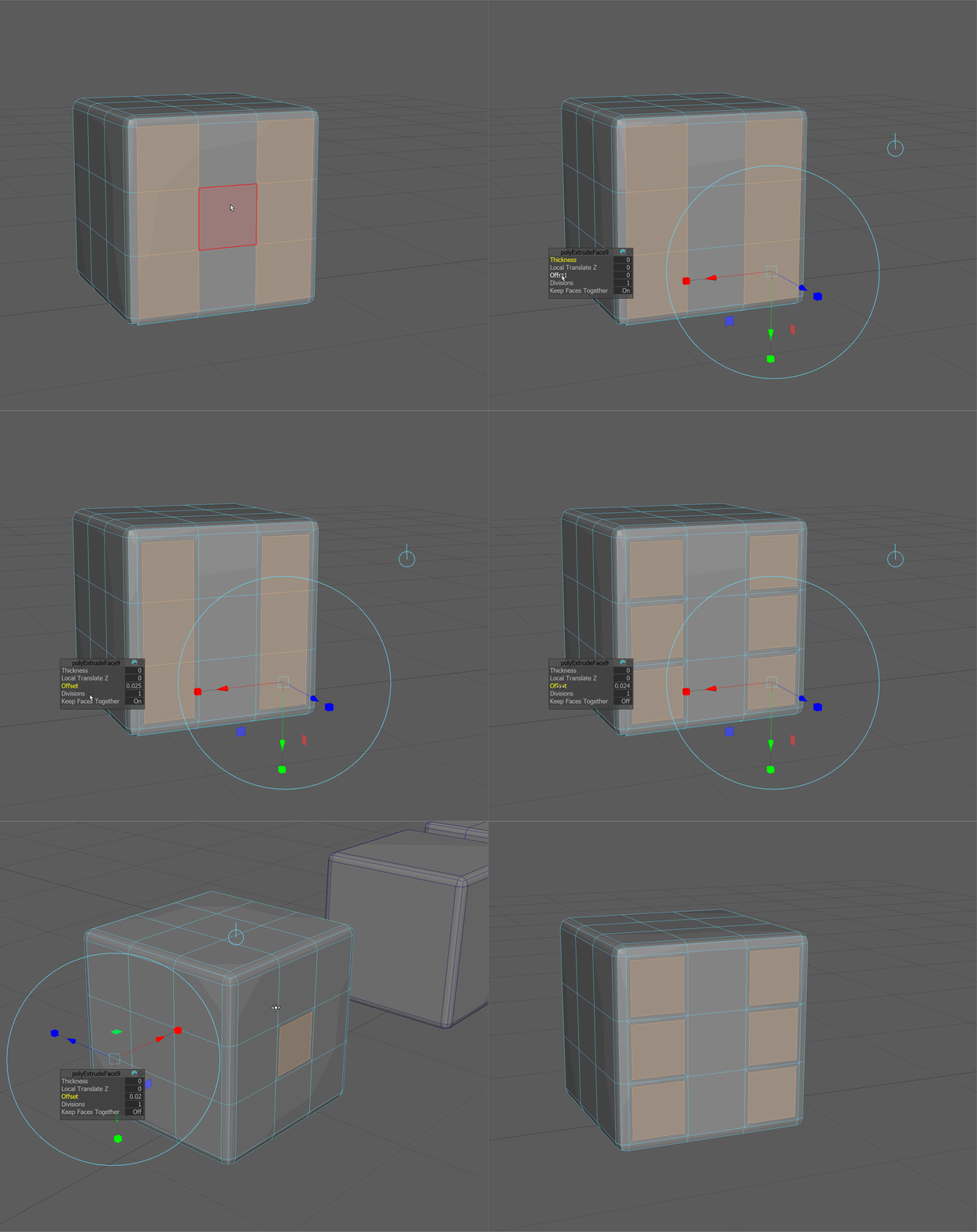
-
Next, let's extrude in slightly to fully fence in our inset area. This will give us a hard edge around our inset area.
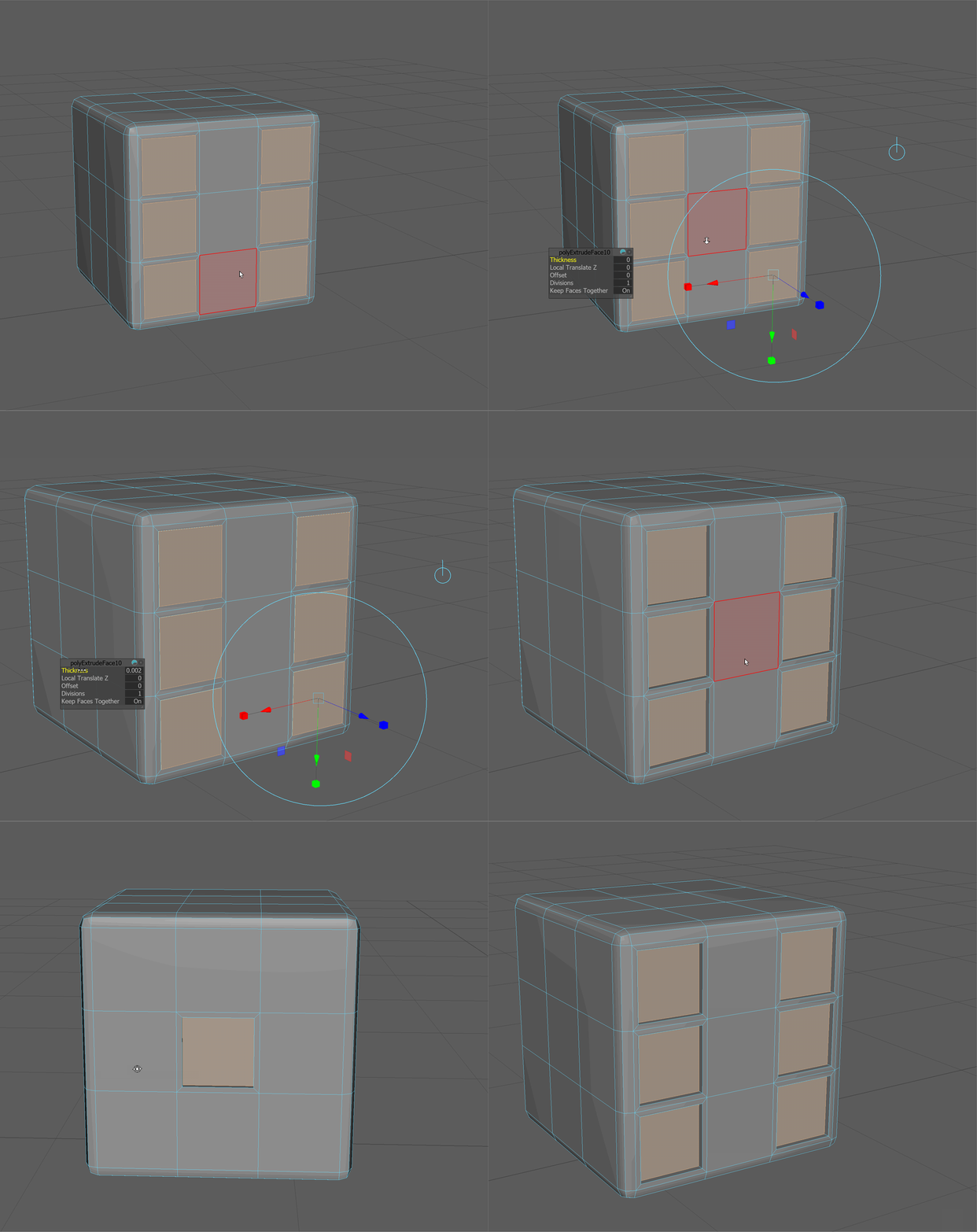
-
Extrude again to make the full inset.
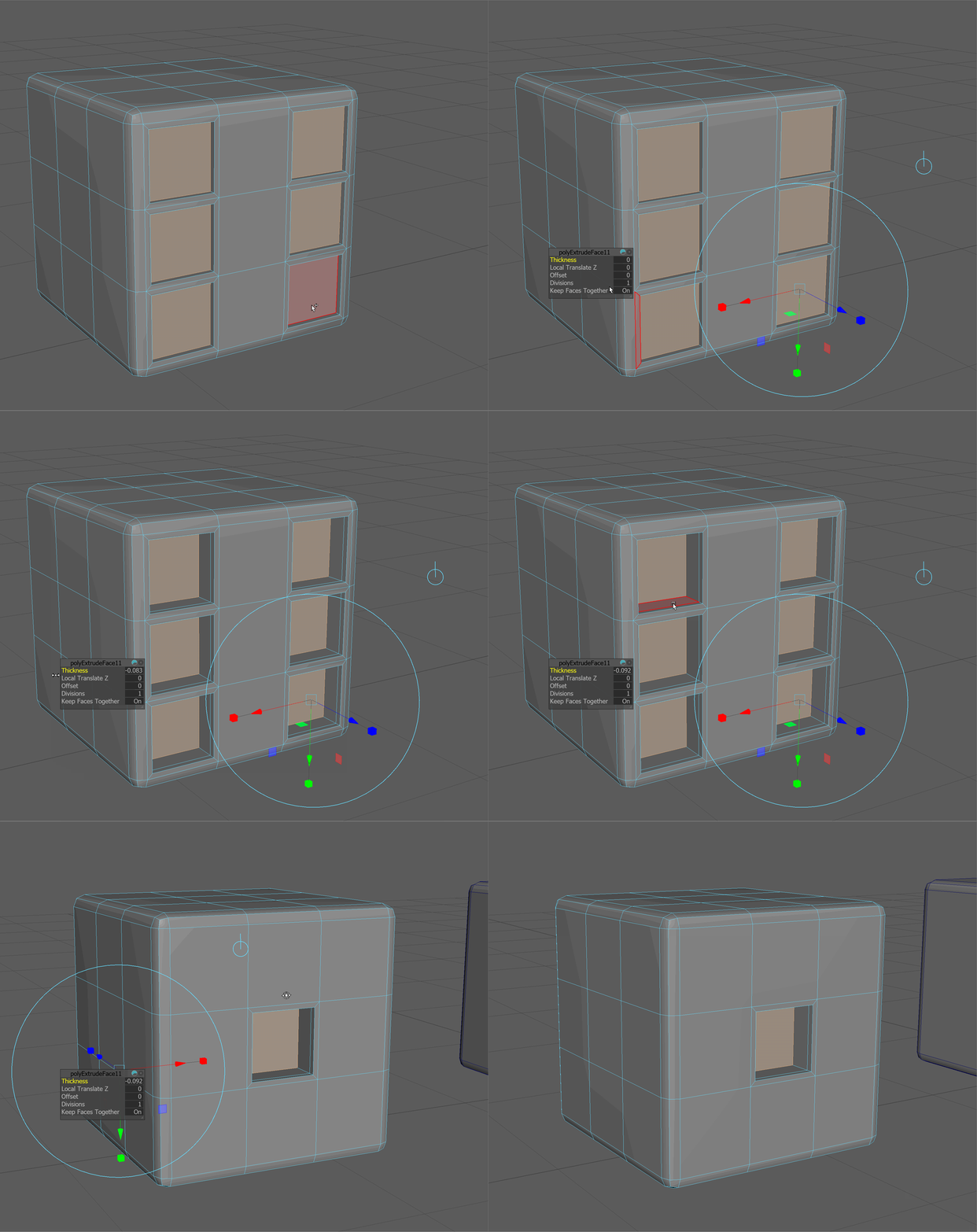
-
We'll be using this model in another exercise. Let's duplicate it so we have a clean copy before smoothing.
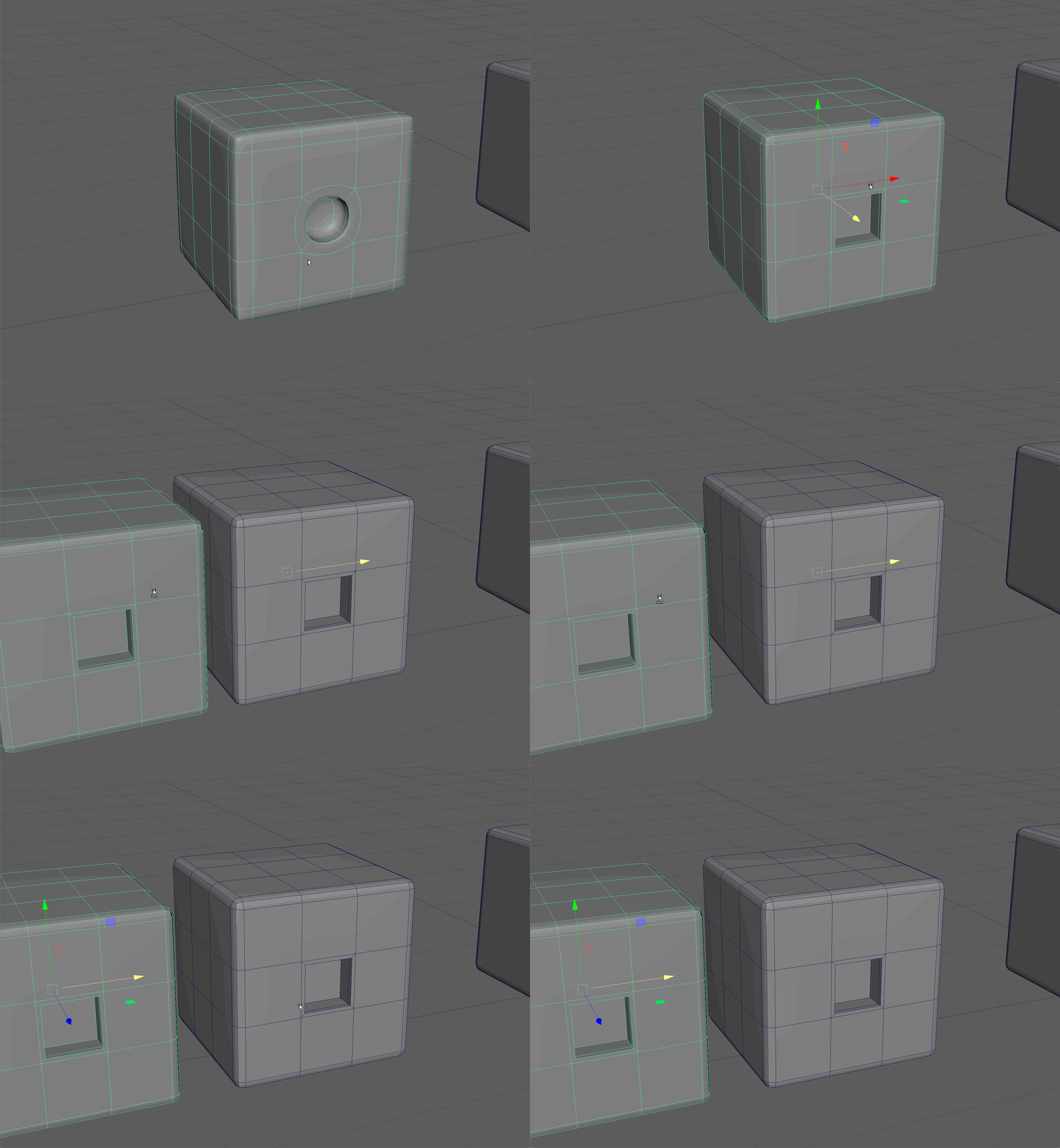
-
Finally, let's give our model 2 levels of subdivision and see how it looks!
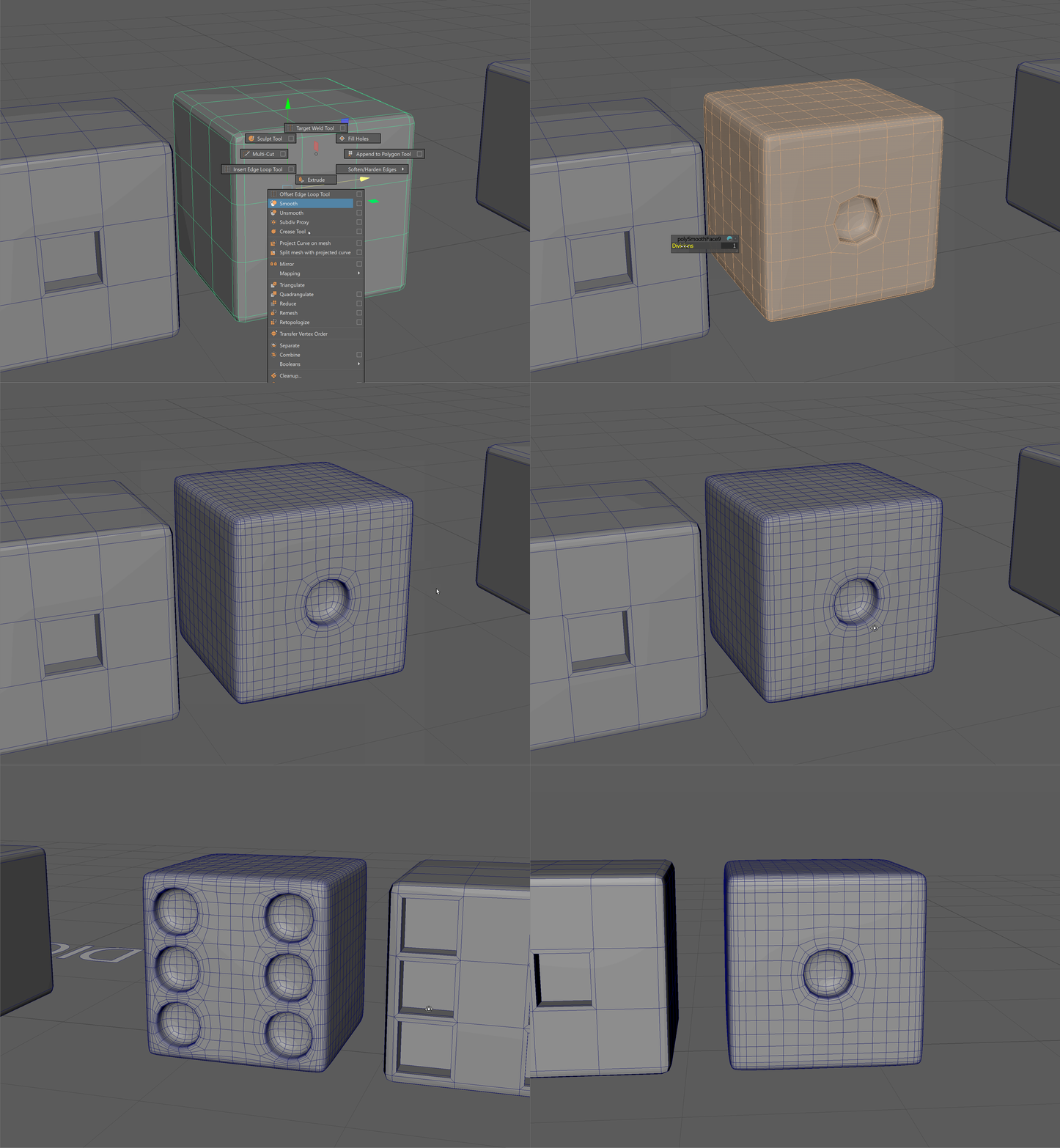
Part 2:
Use the die model from Sketchfab to see which sides of the die are next to and opposite each other.
Use the steps above to make a complete die with two levels of subdivision.